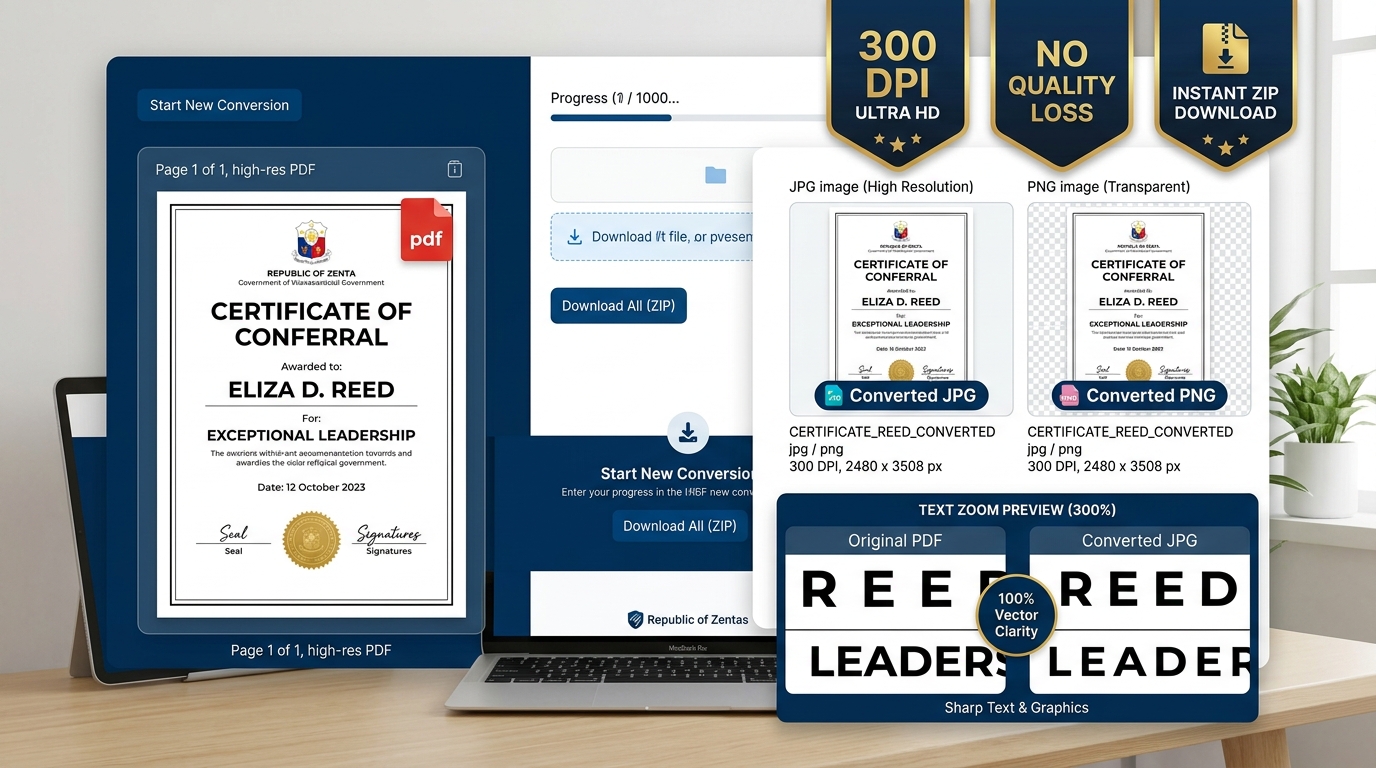
eMitraTool Web & Document Snapshot Studio
Web & Document Snapshot Utility

Website & Document Snapshot Utility Tool

किसी भी वेबसाइट का full-page या कस्टम हाइट स्क्रीनशॉट कैप्चर करें, या PDF/फोटो अपलोड करके हाई-रेसोल्यूशन PNG, PDF व प्रिंट निकालें।

Snapshot Preview Window 1366 x Auto

URL दर्ज करें और "Capture Web Snapshot" पर क्लिक करें।

Export & Direct Print Actions

हाई-रेसोल्यूशन PNG छवि, PDF फ़ाइल या डायरेक्ट प्रिंट निकालें।

Next.js Puppeteer Serverless API Route Code (For Vercel Deployment)

Node.js API Route

सर्वरलेस (Vercel / Node.js) पर बैकएंड Puppeteer स्क्रीनशॉट एपीआई चलाने के लिए अपनी Next.js परियोजना की फ़ाइल app/api/screenshot/route.js में इस कोड का उपयोग करें:

import puppeteer from 'puppeteer-core';
import chromium from '@sparticuz/chromium';

export async function POST(request) {
  try {
    const { url, mode, customHeight, viewportWidth = 1366 } = await request.json();

    // Launch serverless Chromium browser
    const browser = await puppeteer.launch({
      args: chromium.args,
      defaultViewport: { width: Number(viewportWidth), height: 800 },
      executablePath: await chromium.executablePath(),
      headless: chromium.headless,
    });

    const page = await browser.newPage();
    await page.goto(url, { waitUntil: 'networkidle2', timeout: 30000 });

    let screenshotBuffer;
    if (mode === 'full') {
      screenshotBuffer = await page.screenshot({ fullPage: true, type: 'png' });
    } else {
      await page.setViewport({ width: Number(viewportWidth), height: Number(customHeight || 1200) });
      screenshotBuffer = await page.screenshot({ fullPage: false, type: 'png' });
    }

    await browser.close();

    return new Response(screenshotBuffer, {
      status: 200,
      headers: { 'Content-Type': 'image/png' }
    });
  } catch (error) {
    return Response.json({ error: error.message }, { status: 500 });
  }
}
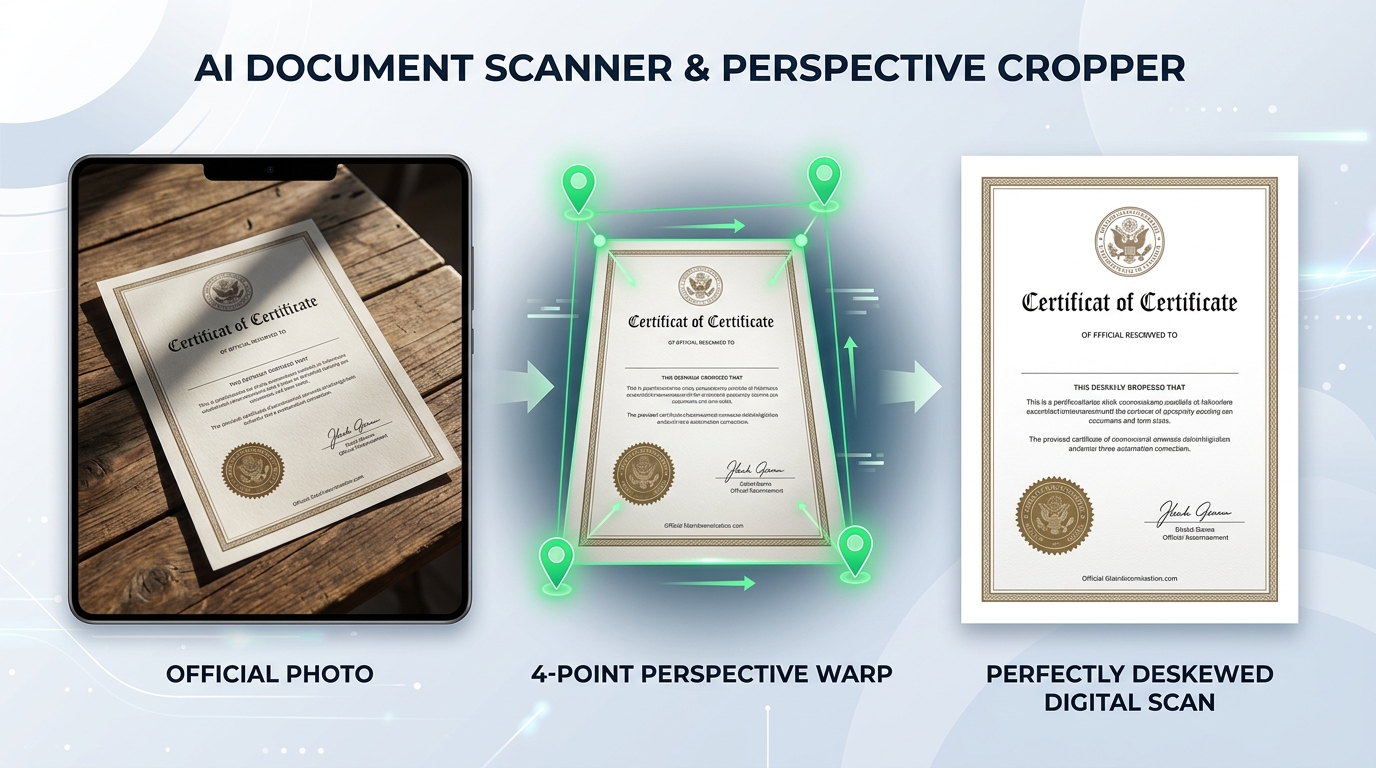
Official Web & Document Snapshot Guide

Full-Page Website Screenshot, PDF Snapshot & Document Print Studio

Capture pixel-perfect full-length website screenshots, configure custom viewport heights, render multi-page PDF documents, and crop image sections into high-resolution PNGs, PDFs, or direct printouts with zero quality loss.

Full-Page Web and Document Snapshot Capture Full-Page Capture

Full-Height Scrolling Webpage Snapshots

Capture entire web pages from top navigation down to the bottom footer. Perfect for archiving portal receipts, official notifications, and website audits without multiple fragmented screenshots.

High Resolution Document to PNG and PDF Export 300 DPI Export

PDF Rendering & Section Cropping

Render PDF pages in high-definition 300 DPI, crop specific transaction tables or receipt receipts, and export instantly to PNG, multi-page PDF, or direct kiosk printing.

How to Capture and Export Snapshots in 4 Simple Steps

1

Enter URL or File

Input any live web address or switch to the Document tab to upload a PDF or image file.

2

Select Viewport

Choose Full-Page or Custom Height mode, and select Desktop (1920px), Laptop (1366px), or Mobile (375px).

3

Preview & Crop

Inspect the rendered snapshot in the live preview canvas and crop specific sections if required.

4

Download & Print

Click 'Download PNG', 'Export to PDF', or 'Direct Print' for instant physical printing.

Technical Specifications & Capture Modes

Overview of supported viewport dimensions, resolution standards, and export workflows.

Capture Mode Viewport Dimensions Render Quality Ideal Use Case Processing Engine
Full-Page Web Capture 1920px / 1366px / 768px / 375px Full scrollable height PNG Website audits, design portfolios, legal proofs Serverless Headless Chromium
Custom Height Web Capture 300px to 5000px slider Exact pixel crop PNG Hero sections, top banners, receipt slips Calibrated viewport clipping
PDF Document Snapshot Standard A4 / Letter multi-page 300 DPI Native Canvas e-Mitra tokens, fee receipts, portal slips Client-side PDF.js
Section Crop & Snapshot Custom user selection box High-DPI Lossless Export Signatures, stamps, QR codes, tables HTML5 Canvas engine
Direct Print & PDF Export Auto-fit to A4 sheet with margins Print-ready vector/raster Instant kiosk printing without file saving jsPDF & browser print engine

Frequently Asked Questions (FAQ)

How do I capture a full-page website screenshot online?

Enter the complete website URL (including https://), select 'Mode 1: Full-Page', choose your preferred viewport width (Desktop 1920px, Laptop 1366px, or Mobile 375px), and click 'Capture Snapshot'. You can then download high-resolution PNG, export to PDF, or print directly.

Can I take snapshots of PDF documents and scanned images?

Yes. Switch to the 'PDF & Image Processing' tab, upload your PDF or image file, select the desired page or section, and export as crisp PNG, multi-page PDF, or send directly to your printer.

What is the difference between Full-Page and Custom Height mode?

Full-Page mode captures the entire scrolling height of the target website from header to footer. Custom Height mode allows you to specify exact pixel dimensions (from 300px to 5000px), perfect for capturing above-the-fold content, hero sections, or specific banners.

Are my document snapshots processed securely and privately?

Yes. Local document snapshots (PDF and images) run 100% inside your web browser via PDF.js and HTML5 Canvas with zero server uploads, ensuring total confidentiality for personal records and receipts.