Notification message
Back

Rotate & Crop Image Online

Box Crop • 4 & 8-Point Document Skew • Lasso Cropper

1 Select Image

Ctrl + V to Paste

Click to upload or drag image here

Supports JPG, PNG, WEBP & BMP

2 Rotate & Flip

Fine Angle Adjustment
-45° +45°

3 Choose Crop Mode

Aspect Ratio Freeform

4 Format & Download

No Image Selected

Upload a photo from your computer or press Ctrl + V to paste.
Official Image Rotation & Perspective Crop Guide

Professional Image Rotation, 4-Corner Skew & Freeform Cropping

Easily rotate images by any degree, straighten tilted document snapshots with 4-corner and 8-point mesh perspective warping, and crop photos to exact government aspect ratios (Passport, Aadhaar, PAN) directly in your browser.

Image Rotation and Aspect Ratio Cropping Rule of Thirds & Precision Degree Dial

Precise Degree Rotation & Multi-Ratio Cropping

Rotate tilted camera photos with 0.1° slider accuracy or 90° flip buttons. Lock aspect ratios for square avatars, 16:9 banners, or official 3.5×4.5 cm passport portraits.

4-Corner Document Skew and Lasso Cutout 4-Corner Skew & Freehand Lasso

Deskew Angled Docs & Freehand Polygonal Cuts

Drag 4 corner handles to eliminate photographic perspective distortion on certificates, or use the Lasso Polygon tool to isolate stamps and signatures with pixel precision.

How to Rotate & Crop Images in 4 Easy Steps

1

Upload or Paste

Select an image file or press Ctrl + V to paste directly from your clipboard.

2

Rotate & Straighten

Use the 90° turn buttons or fine-tune the degree angle slider to level tilted photos with the interactive grid lines.

3

Choose Crop Tool

Pick Standard Box, 4-Corner Skew, 8-Point Mesh, or Lasso Polygon. Drag corner handles to frame the target area.

4

Export JPG / PNG

Review the live transformed preview and download high-resolution JPG or lossless transparent PNG with one click.

Cropping & Rotation Modes Comparison

Understand the capabilities of each cropping algorithm to achieve the best result for photos, documents, and ID cards.

Crop Mode Control Handles Best Application Distortion Correction Output Formats
Standard Box Crop 8 Handles (Corners + Edges) Portraits, Social Media, Standard Photos Linear Aspect Ratio Scaling JPG, PNG, WEBP
4-Corner Skew (CamScanner) 4 Draggable Corner Dots Tilted Certificates, Documents on Tables Full 2D Homography Perspective Warp JPG, PNG
8-Point Mesh (Folded Doc) 4 Corners + 4 Midpoint Dots Curved Books, Folded Affidavits, Receipts Bi-linear Mesh Curve Flattening JPG, PNG
Lasso Polygon Cut Unlimited Freeform Anchor Points Official Rubber Stamps, Signatures, Badges Custom Polygonal Path Clipping Transparent PNG, JPG

Frequently Asked Questions (FAQ)

How do I straighten a crooked or tilted photo of a document?

Switch to the '4-Corner Skew' or '8-Point Mesh' mode. Drag each corner anchor point to match the tilted edges of your document. The tool applies perspective transformation to render the document completely level and rectangular.

What is the 8-Point Mesh mode used for?

The 8-point mesh mode is designed for photographed book pages, folded certificates, or curved documents. By adjusting 4 corner handles and 4 edge midpoint handles, it counteracts paper curvature and fold lines.

Can I crop irregular shapes or freehand contours?

Yes. Select the 'Lasso Polygon' crop mode to click or drag along any irregular contour, stamp, or signature. The tool cuts out precisely inside the lasso polygon path.

What preset aspect ratios are supported?

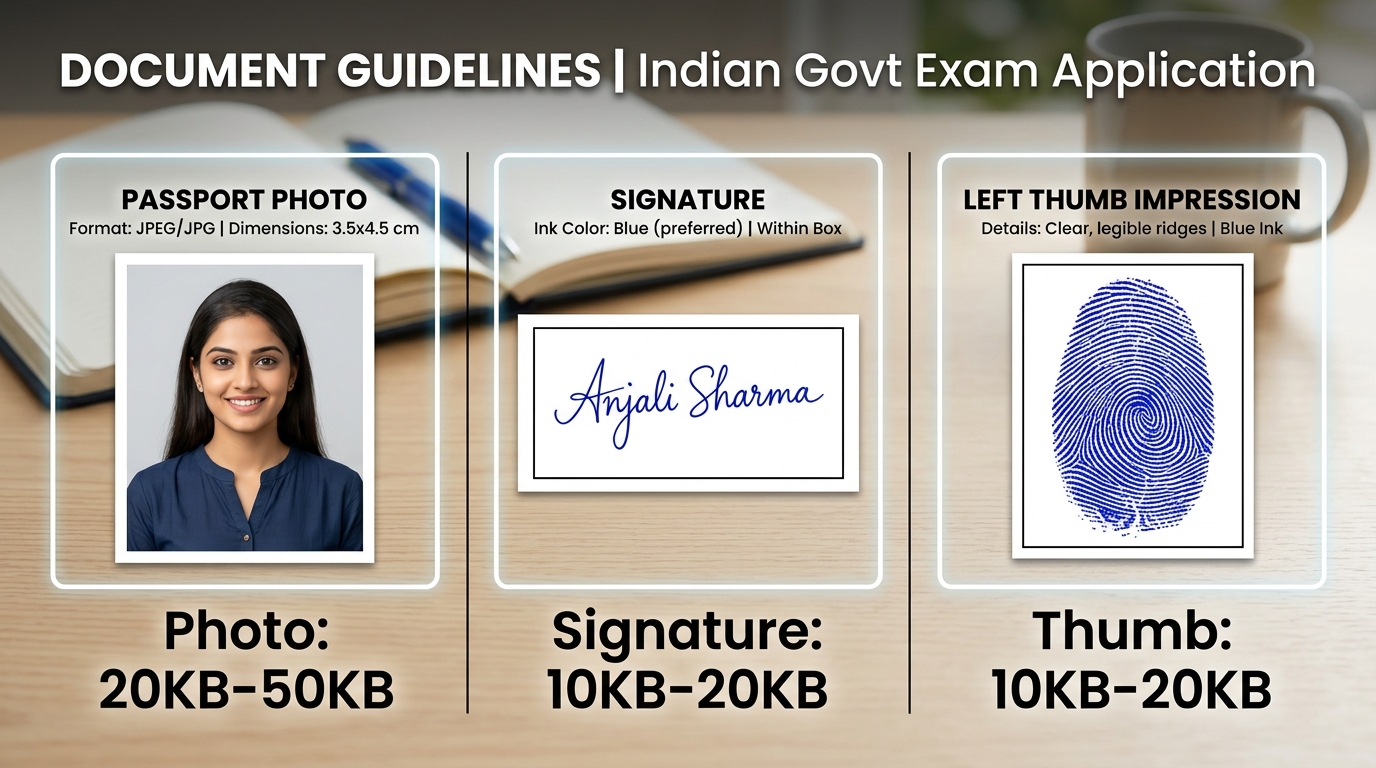
Presets include 1:1 (Square), 4:3 (Standard Photo), 16:9 (Widescreen), 3.5:4.5 (Indian Passport Size), 85.6:54 (Aadhaar & PVC ID Card), and Freeform Unlocked mode.

Does rotating and cropping reduce image quality?

No. The tool performs high-precision bicubic canvas rendering based on the original image dimensions without unnecessary downsampling, and exports high-quality JPG or lossless PNG.