Click or Drag & Drop PDF File
Multipage PDF documents • 100% Client-side privacy • Ctrl+V to paste
Click or Drag & Drop PDF File
Multipage PDF documents • 100% Client-side privacy • Ctrl+V to paste
Often a master scan or university gazette contains 10 to 50 pages, but a recruitment portal only allows uploading your individual 1-page marksheet. Our visual splitter lets you select precise page ranges (e.g. 1-3, 5, 8-10) or split every page into standalone PDFs with lossless vector clarity.
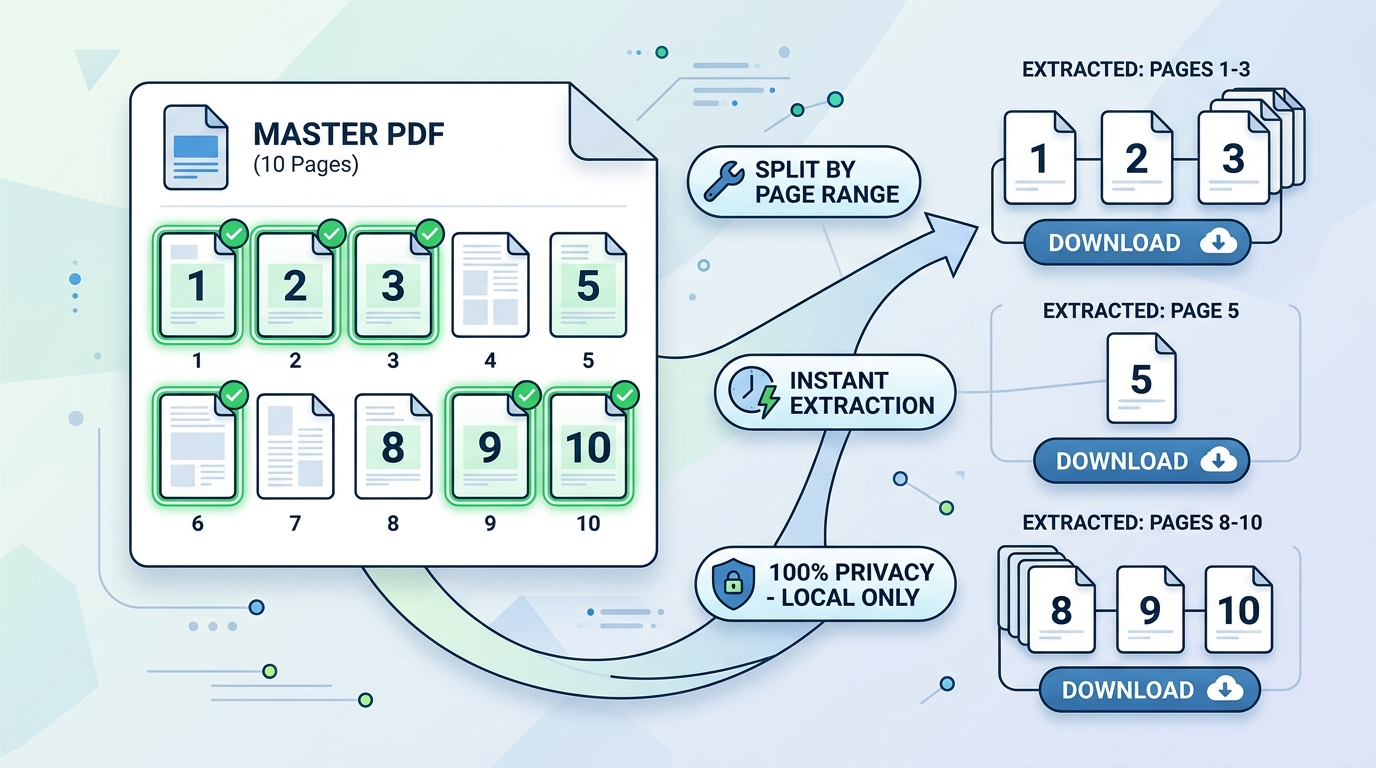
Drag and drop your PDF document into the tool. All pages will instantly render as interactive visual thumbnails.
Choose between Extract Selected (to bundle chosen pages) or Split Every Page (for individual files).
Click thumbnails or type page ranges in the Range box. Use the 90° rotate buttons to fix any orientation issues.
Click 'Download Extracted PDF' or 'Download ZIP'. Your files are generated entirely within browser memory.
| Master Document Type | Typical Page Count | Pages to Extract | Use Case / Portal Purpose |
|---|---|---|---|
| Combined E-Mitra Token Receipt | 3 to 5 Pages | Page 1 (Token & Ack) | Customer acknowledgment receipt for caste/domicile certificate |
| University Consolidated Marksheet | 6 to 8 Pages | Final Semester Page | SSC/UPSC document verification where only final aggregate is needed |
| Property Registry / Sale Deed | 15 to 30 Pages | Pages 1-2 & Stamp Endorsement | Bank home loan pre-approval and revenue department verification |
| Multi-Member Ration Card / Jan Aadhaar | 2 to 4 Pages | Candidate Details Page | Individual scholarship and pension scheme eligibility submission |
Upload your multi-page PDF, then enter the desired page numbers in the Range input (e.g. '1-3, 5, 8-10') or click directly on the visual page thumbnails to select or deselect pages. Click 'Extract Selected' to download your custom sub-document.
Yes. Simply click the 'Split Every Page' option. The tool automatically creates standalone single-page PDF files and bundles them into a convenient ZIP archive for instant download.
No. Our split engine utilizes lossless PDF-Lib binary parsing. It copies exact page streams without rasterization, preserving 100% of the original vector text sharpness and digital stamps.
Yes. Each page thumbnail has a 90° clockwise and counter-clockwise rotate button. You can correct sideways or upside-down scanned pages before exporting.
Zero server uploads. All processing takes place locally in your device's browser memory using client-side JavaScript, guaranteeing total privacy and security.